


The Balance section contains your balance info:
- earnings ready for transfer to Wallet
- earnings awaiting confirmation by the brand
- balance history
- link to your ConvertSocial Wallet
Ready for withdrawal
This section shows your earnings for confirmed actions made via your referral links. Learn more about action confirmations
You can transfer your earnings to Wallet once the amount in the Ready for withdrawal section reaches the minimum withdrawable amount of €20.
To transfer your earnings, click the Transfer funds button. Learn more how to withdraw funds from ConvertSocial
When you’re just starting out on ConvertSocial, the Ready for withdrawal section will be empty. Learn more in A step-by-step guide for making money on ConvertSocial
Pending earnings
This section displays the amount of expected earnings for actions made via your referral links. These actions are being verified by the brands for which you generated the actions.
If your account level is Premium, this section will always be empty, as the reward for confirmed actions will be shown in the Ready to withdrawal section.
After a user follows your referral link and performs an action, the brand needs to verify and confirm that the action was actually completed and the user didn’t cancel it. This process may take from 1 to 3 months. Learn more about action confirmation
- If the brand confirms an action, your earnings for it will be moved to the Ready for withdrawal section.
- If the brand declines an action, you won’t receive a reward for it. In this case, your earnings for that action will disappear from the Pending earnings section. Why the amount in the Pending earnings section may decrease
When you’re just starting out on ConvertSocial, the Pending earnings section will be empty. Learn more in A step-by-step guide for making money on ConvertSocial
Balance history
This is where you can track funds as they’re transferred to/from your balance.
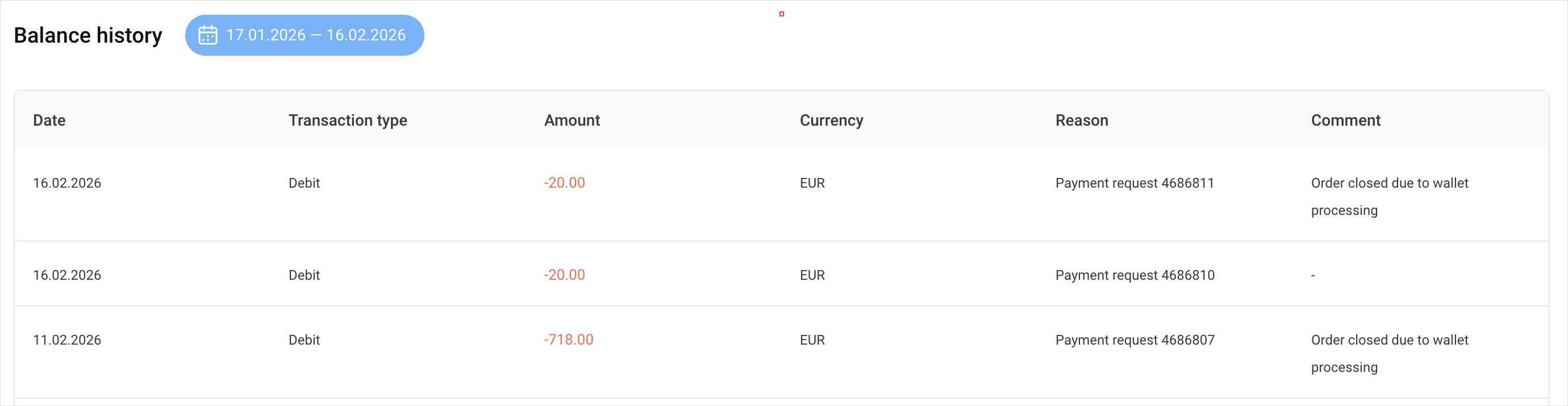
The chart shows two types of transactions:
- Credit. Crediting funds to your balance. Example: a reward for an action, a refund after an uncompleted payment request, or a refund after an erroneous debit.
- Debit. Debiting funds from your balance. Example: withdrawing funds via ConvertSocial Wallet or debiting a reward amount if the brand declined a reward for a target action. Learn more about reasons for declining actions
The Reason column will indicate why the funds were debited or credited.
- Payment for action ID*** means that a brand confirmed the action with ID*** and the related reward was credited to the balance.
If a brand later declines the confirmed action, one more transaction with the Payment for action ID*** reason will appear in the balance history. However, this time, it’ll have the Debit type. Learn more about reasons for declining actions
- Debit for action ID*** means that the brand declined the action that had been earlier confirmed and the reward for it was deduced from your balance in favor of the brand. More on order declination reasons
- Payment request ID*** means you created a payment request, and the requested amount was debited from your balance.
If the request was declined by the payment system, this amount will be returned to your balance, and another operation with the reason Payment request indicated will appear in your balance history. However, it’ll be a credit this time.
By default, the section shows the monthly balance history, but you can filter data by date to quickly find the transaction you need.
